How to Sign Up and Book Your First Field on GameSpace
How to Sign Up and Book on GameSpace
Create a free account and book your first facility online, wherever the venue takes bookings on GameSpace. No phone calls, no waiting for callbacks.
Quick take: Go to trygamespace.com/browse, find a facility that takes bookings on GameSpace, pick a time slot, and pay. That's it. The confirmation comes by email, not by callback.
Step 1: Create Your Free Account
Head to trygamespace.com/signup/coach and sign up with your email or Google account. You'll need your name and a password — nothing else. No credit card required to create an account.
There's no approval process for coach accounts. If we email you a confirmation link, click it to verify your address, and you're ready to search.
Step 2: Search for Facilities
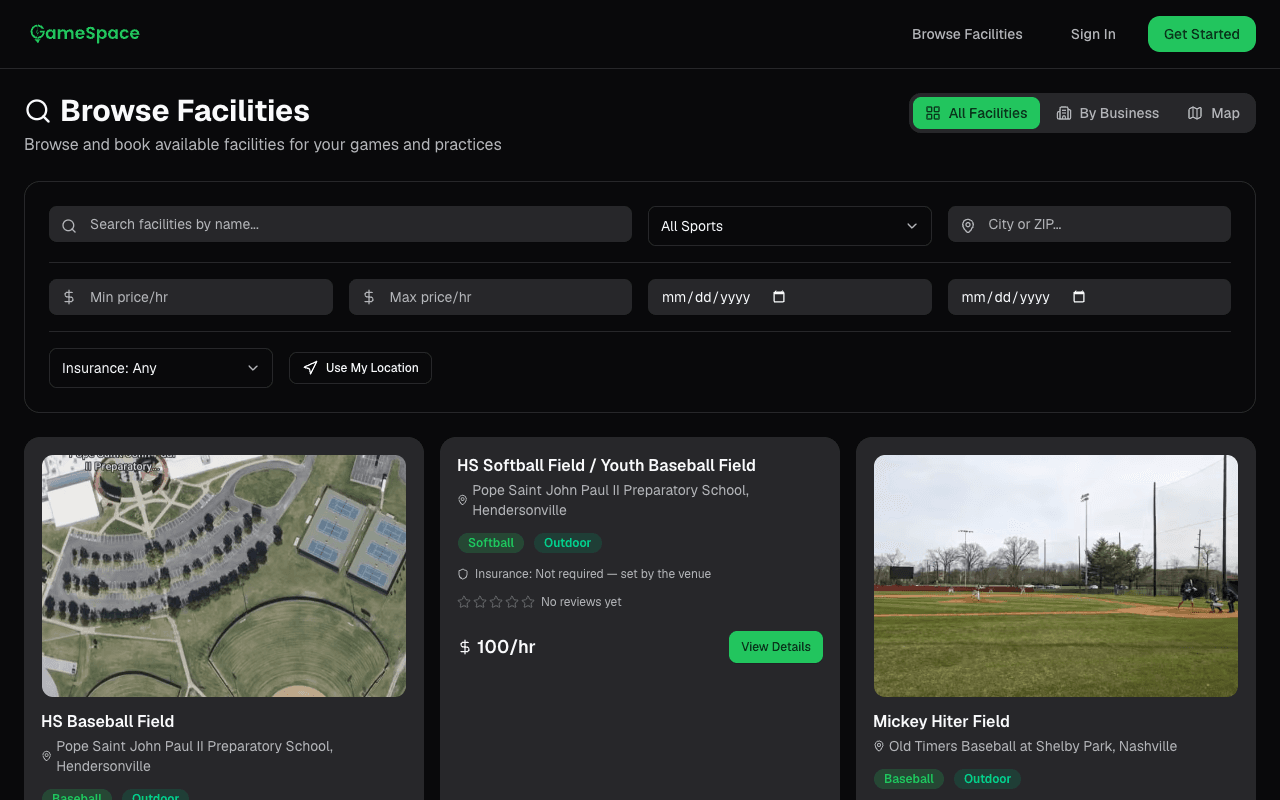
Open the facility search and filter by:
- Sport — soccer, basketball, baseball, volleyball, pickleball, and more
- Location — search by city, zip code, or use your current location
- Dates — narrow results to the dates you need
- Price — set the hourly rate you want to stay under
Results show photos, sport, indoor or outdoor, and pricing where the venue has listed them, so you can compare before clicking into each one.
Not sure what to look for? We wrote a full breakdown of the factors that actually matter.
Step 3: Review the Facility
Click any facility to see the full listing:
- Photos of the field, court, or space
- Playing areas and the sport-specific details the venue has listed
- Pricing — hourly rate displayed upfront, no hidden fees
- Open time slots for your selected date, where the venue takes bookings on GameSpace
This is where you skip the phone tag. Much of what you'd ask on a call is right here on one screen.
Step 4: Pick a Time Slot and Book
Select the time slot you want. For a venue that takes bookings on GameSpace, the calendar shows its open times — if it's showing open, you can book it. No more "let me check and get back to you."
Confirm your booking and pay the facility's rate through secure checkout. Some venues approve each request first. Once your booking is confirmed, you'll get a confirmation email with the date, time, and any check-in instructions.
Step 5: Show Up and Play
That's the entire process. You booked a field without a single round of phone tag.
Your booking, payment receipt, and facility contact info all live in your dashboard. If anything changes, you handle it from there.
What If the Facility Cancels?
If a facility cancels your booking, you get a full refund. No arguing, no negotiating — you don't lose money because someone else dropped the ball.
Why Coaches Prefer This to Phone Booking
| Phone booking | GameSpace | |
|---|---|---|
| Find availability | Call around, one facility at a time | Search in one place |
| Compare pricing | Ask each one individually | See listed prices upfront |
| Confirm a slot | Wait for callback | Confirmation by email |
| Cancellation protection | Hope for the best | Full refund if the facility cancels |
If you're still booking the old way, you're spending time on logistics instead of coaching.
Ready to Book?
Browse fields and courts near you — search, compare, and book online where the venue takes bookings on GameSpace.
Looking for more options? Check out our comparison of the best booking apps for coaches.