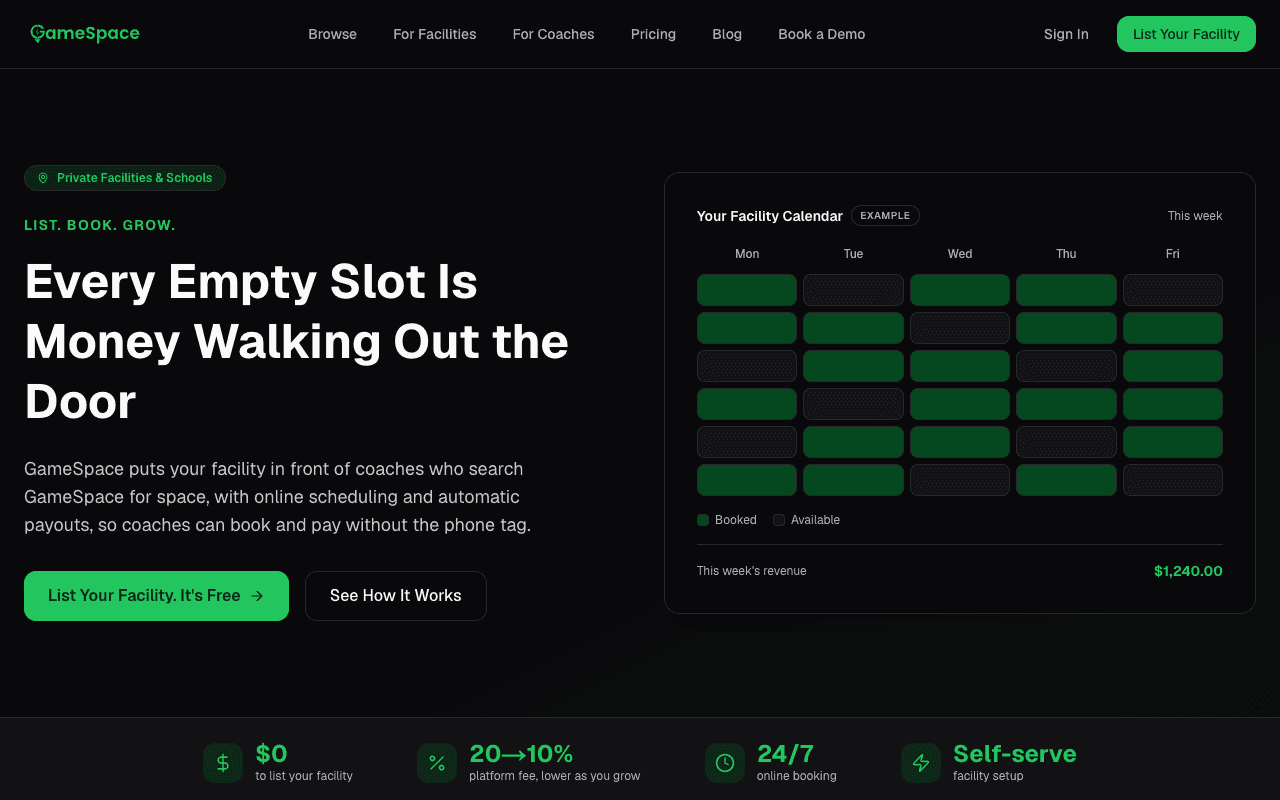
How to List Your Sports Facility on GameSpace
How to List Your Facility on GameSpace
Create a business account, then set up your listing yourself: add your details, photos, sports, hours, and pricing, then publish. Card payments switch on once Stripe verifies your payout account. No demo call, no sales process, no annual contract.
Quick take: Register at trygamespace.com/signup/business, add your facility info + photos, set your hours and prices, and publish. Your listing appears in search when you publish, and coaches can pay by card once Stripe verifies your payout account.
Step 1: Create Your Business Account
Go to trygamespace.com/signup/business. You'll need:
- Business name
- Your name and email
- Password
That's it for account creation. No credit card, no payment info upfront.
Step 2: Add Your Facility
Once logged in, add your facility with:
- Name and address — this is how coaches find you in search
- Description — what makes your facility worth booking (be specific, not salesy)
- Photos — upload high-quality images of the playing surface, amenities, parking, and entrance. Photos help coaches judge your space before they book, so show them what they'll get.
- Amenities — lights, restrooms, parking, water, storage, scoreboard, etc.
Step 3: Define Your Spaces
Set up each bookable space (field, court, room) individually:
- Name — "Field A," "Court 1," "Indoor Turf"
- Sports supported — soccer, basketball, baseball, etc.
- Indoor/outdoor
- Capacity — how many players can use the space
- Surface type — turf, grass, hardwood, sport court
If you have multiple fields or courts, create each one separately so coaches can book specific spaces.
Step 4: Set Availability and Pricing
- Hours of operation — when each space is available for booking
- Hourly rate — set your price. It's displayed to coaches before they book, so there are no surprises.
- Blocked times — mark any times that aren't available (leagues, maintenance, private events)
Pricing tip: Not sure what to charge? Read our guide to pricing sports facility rentals. Off-peak pricing can fill empty weekday hours without undercutting your evening rates.
Step 5: Publish
Hit publish and your listing appears in search. Coaches who search for your sport in your area see your listing with photos, pricing, and open times. Card payments switch on once Stripe verifies your payout account.
What Happens After You List
- Coaches find you through search — filtered by sport, location, and date
- They book directly — you approve each request, or confirm bookings as they are paid, and you get notified of each booking
- You choose how you get paid — card payments at checkout with weekly payouts, or invoice mode for your whole business if your renters pay by invoice or PO: checkout then skips the card, and each booking gets a numbered invoice you send and collect yourself
- Cancellations are managed — if you cancel, the coach gets back everything they paid except the card processing fee, and is notified
Your listing works alongside your own marketing: coaches who search GameSpace can find your listing. For more on how this works, read how GameSpace helps your facility attract more bookings.
Listing Optimization Tips
- Add several photos — surface, amenities, parking, entrance, surrounding area
- Write a real description — mention specific sports, surface quality, what's included. Skip the marketing fluff.
- Price competitively — check what similar facilities in your area charge
- Keep availability current — stale listings with outdated hours frustrate coaches
- Respond to booking notifications — fast response builds your reputation
FAQ
Do I need to replace my existing booking system? No. GameSpace is a discovery channel, not a management platform. Use it alongside whatever you already have. Why your facility needs online booking explains the difference.
What does it cost? Free to list on the Starter plan, with a platform fee per confirmed booking. No long-term contracts. No demo required.
Can I manage my bookings? Yes — your business dashboard shows all bookings, payment history, and messaging with coaches.
What if I need to cancel? Cancel through the platform. The coach gets back everything they paid except the card processing fee, and gets a cancellation notice. Learn how to reduce no-shows and minimize cancellations.
List Your Facility Now
Register at trygamespace.com/signup/business and start reaching coaches in your area. Self-serve setup, no contracts, no demo calls.